
Transcribe an interview with speaker labels (who said what)
A free desktop app you install once (Windows, macOS, Linux). Your recording is processed on your computer, and no account is needed.
The app tells voices apart and labels them Speaker 00, Speaker 01 and so on. It does not know who anyone is until you rename them. Similar voices, short replies, overlapping speech and background noise can cause wrong labels. To start, tick Identify speakers on the Transcribe tab and press Transcribe.
Before you start
The Windows and Mac builds include the speaker-detection models. Get the app from the official GitHub releases page only; the installer is not code-signed, so Windows may warn (More info > Run anyway). Also see the home page and install guide.
How to add speaker labels to a transcript
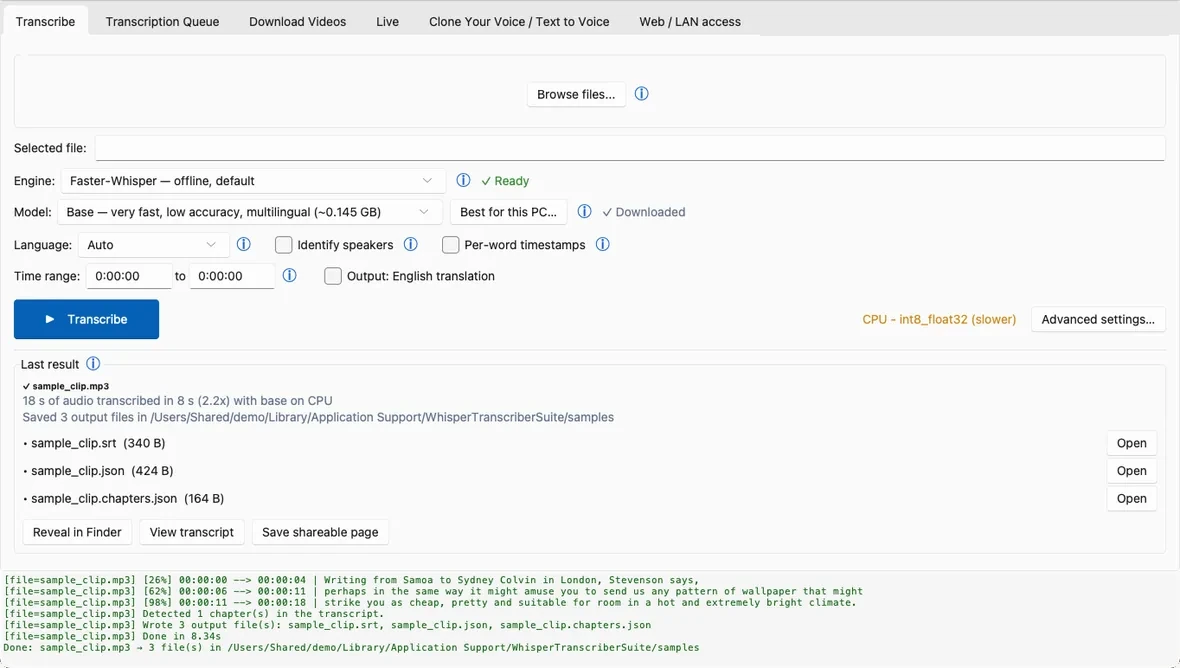
- Add the recording. On the Transcribe tab, drag in an audio or video file or click Browse files.... A link from the Download Videos tab works as well, because it uses the same Transcribe settings.
- Choose the Language, or leave it on Auto.
- Tick Identify speakers. If the box reads Identify speakers (unavailable), hover over it to see why. The Speakers picker below it switches on: leave it on Auto, or choose a number from 2 to 10 to force exactly that many people.
- Optional: tick Per-word timestamps to store a start and end time for every word instead of only every sentence. The output gets larger.
- Pick the export formats. Click Advanced settings… and tick DOCX and PDF under Output formats. SRT, TXT, Markdown and JSON carry the labels too. Keep JSON ticked: it is a JSON file the app uses to open the transcript viewer, which you need for the last step.
- Click Transcribe. Speaker detection runs after the transcription and adds processing time. Then open View transcript from the Last result card.
- Replace the generic labels with names. In the viewer, right-click a cell in the Speaker column, choose Rename 'Speaker 00' (everywhere)..., type the name and click Save changes (Ctrl+S). The Word and text files next to it are rebuilt when they still match the original transcript; a PDF is not, so export it again after renaming.
What the labels look like
Each segment starts with its speaker. In a Word or PDF transcript the line is a timestamp, the speaker in bold, then the text. SRT, VTT and TXT put Speaker 00: in front of the text, ASS keeps it in its own name field, and JSON stores it as a speaker field. The shareable web page shows it too. The lines below are an illustration of the layout, not real output:
[00:00:04]  Speaker 00:  So where do we start?
[00:00:07]  Speaker 01:  With the recording itself.
Good to know
- One label per segment. Each transcript segment gets the speaker whose detected speech overlaps it most. If two people talk within one segment, or over each other, the whole segment carries a single label. A segment with no detected speech overlapping it gets none.
- Fixing a single line. Renaming changes every line with that label at once. The viewer has no way to change one line's speaker, so fix single lines by hand in the exported Word or text file.
- Generic names. Labels are numbered, and the numbers are stable inside one file but not across files.
- If the count looks wrong, set Speakers to the real number of people instead of leaving it on Auto.
- Offline, no Hugging Face account. It runs on your own computer, and takes extra time on top of the transcription.
- Word timing. Per-word timestamps are stored in the JSON file and used for karaoke-style highlighting in VTT and ASS.
Questions
Does it name the speakers for me?
Not out of the box. Labels read Speaker 00, Speaker 01 and so on. Use the rename option in the transcript viewer to turn them into names.
How many speakers can it tell apart?
Leave Speakers on Auto and the app decides, or force a number from 2 to 10 when you know it.
Can it separate people who talk at the same time?
No. Crosstalk is not split: a segment gets one label, the speaker who covers most of it. Check those passages by listening.
Which exports show the speaker labels?
DOCX, PDF, SRT, VTT, TXT, Markdown, ASS, JSON and the shareable web page.